Configure the view around the work
A project lead reviewing priorities needs a different view from a chemist comparing formulations or a lab manager checking stock. Listing Tables let each of them shape the same records into the view they need: the right columns, the right filters, and a tab they can come back to.
Listing Tables are available for most record types in Uncountable, including experiments, projects, inventory, ingredients, requests, tasks, equipment, and custom record types.
What you can configure
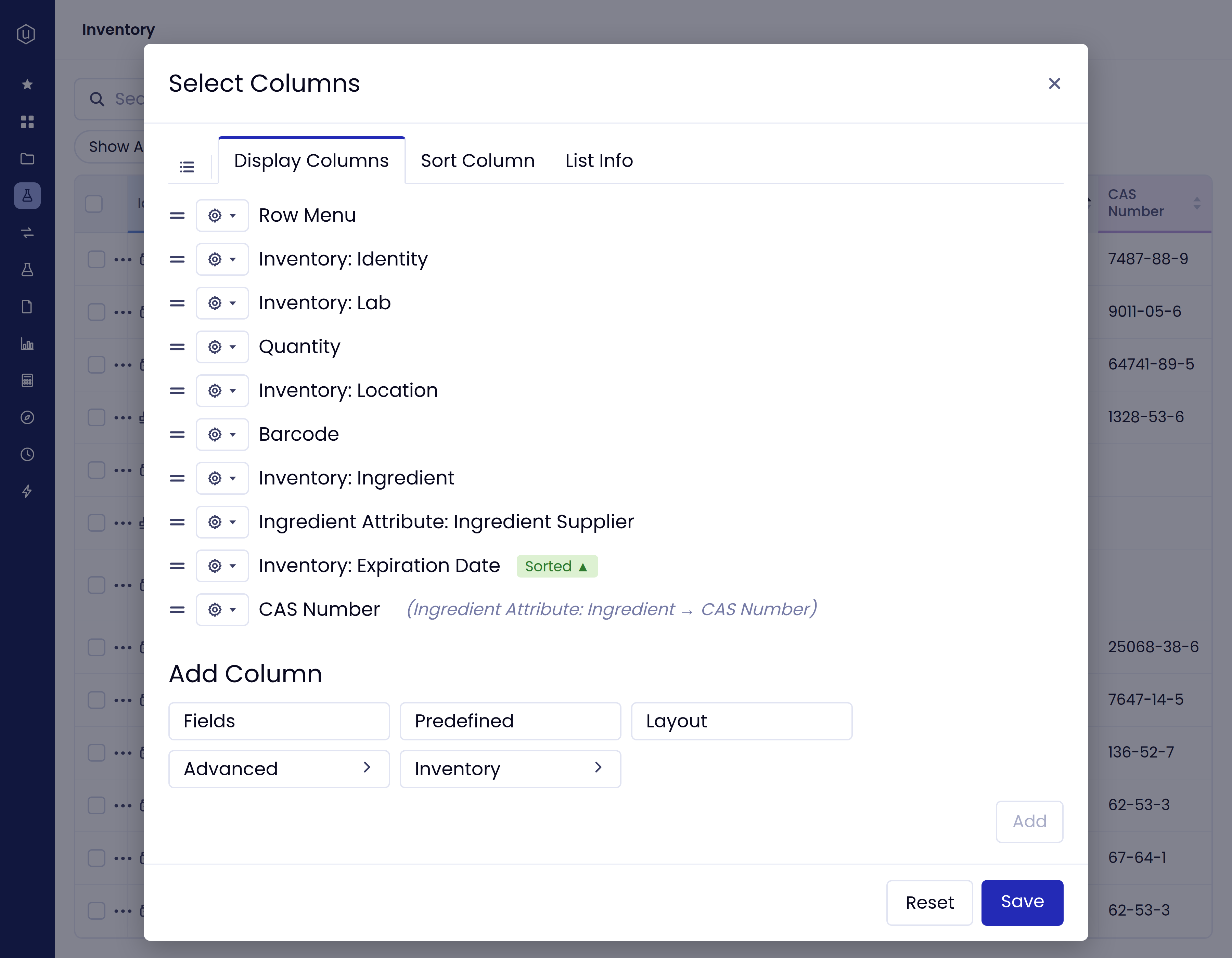
- Columns. Add any field to the table, including fields from linked records. For example, an inventory table can show the CAS number stored on the ingredient. Drag columns to reorder them, resize them, and group related columns under a shared header.
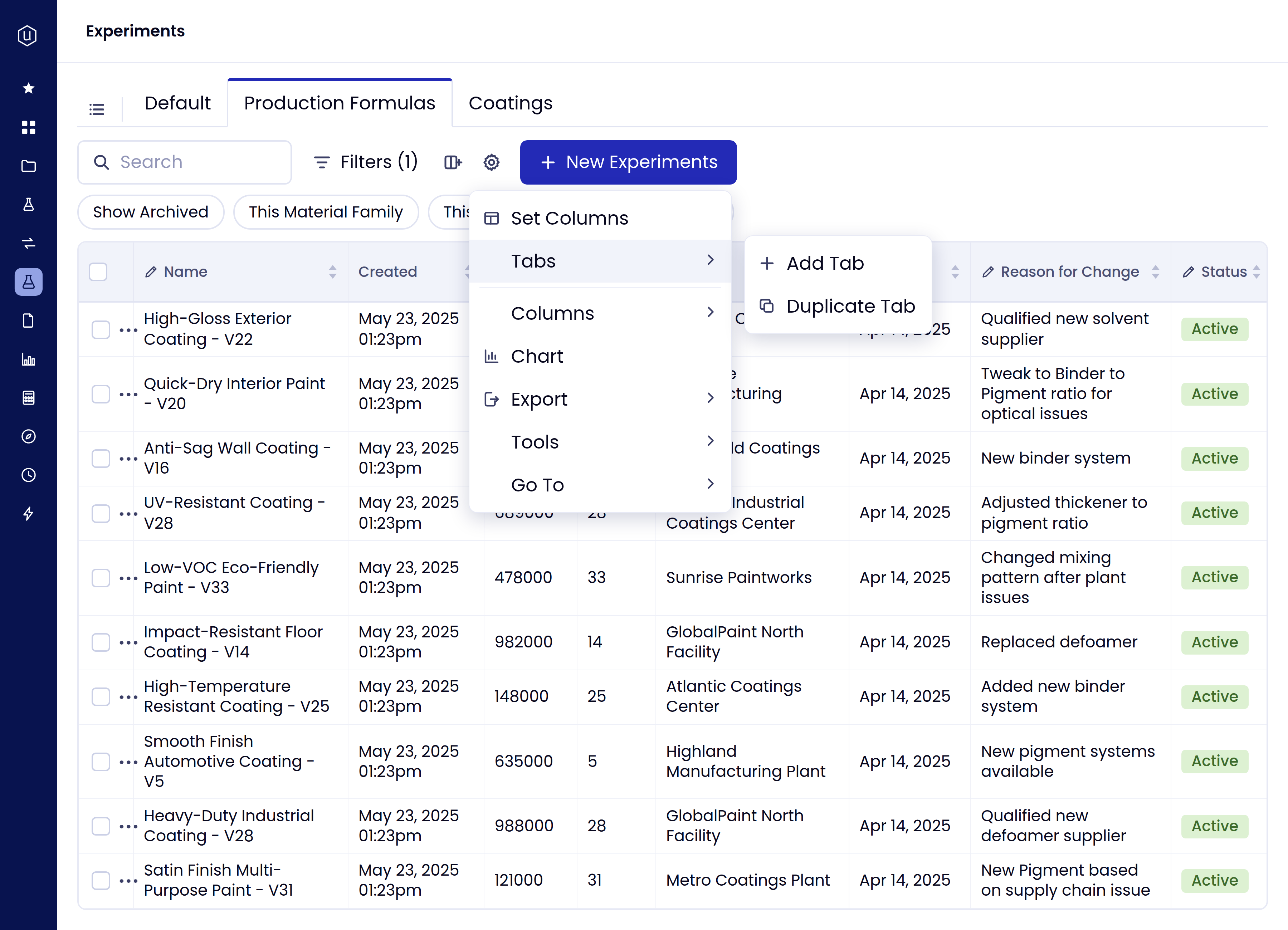
- Tabs. Keep several views of the same list side by side. Users can add or duplicate their own tabs. Administrators can publish default tabs to all users or to specific user groups.
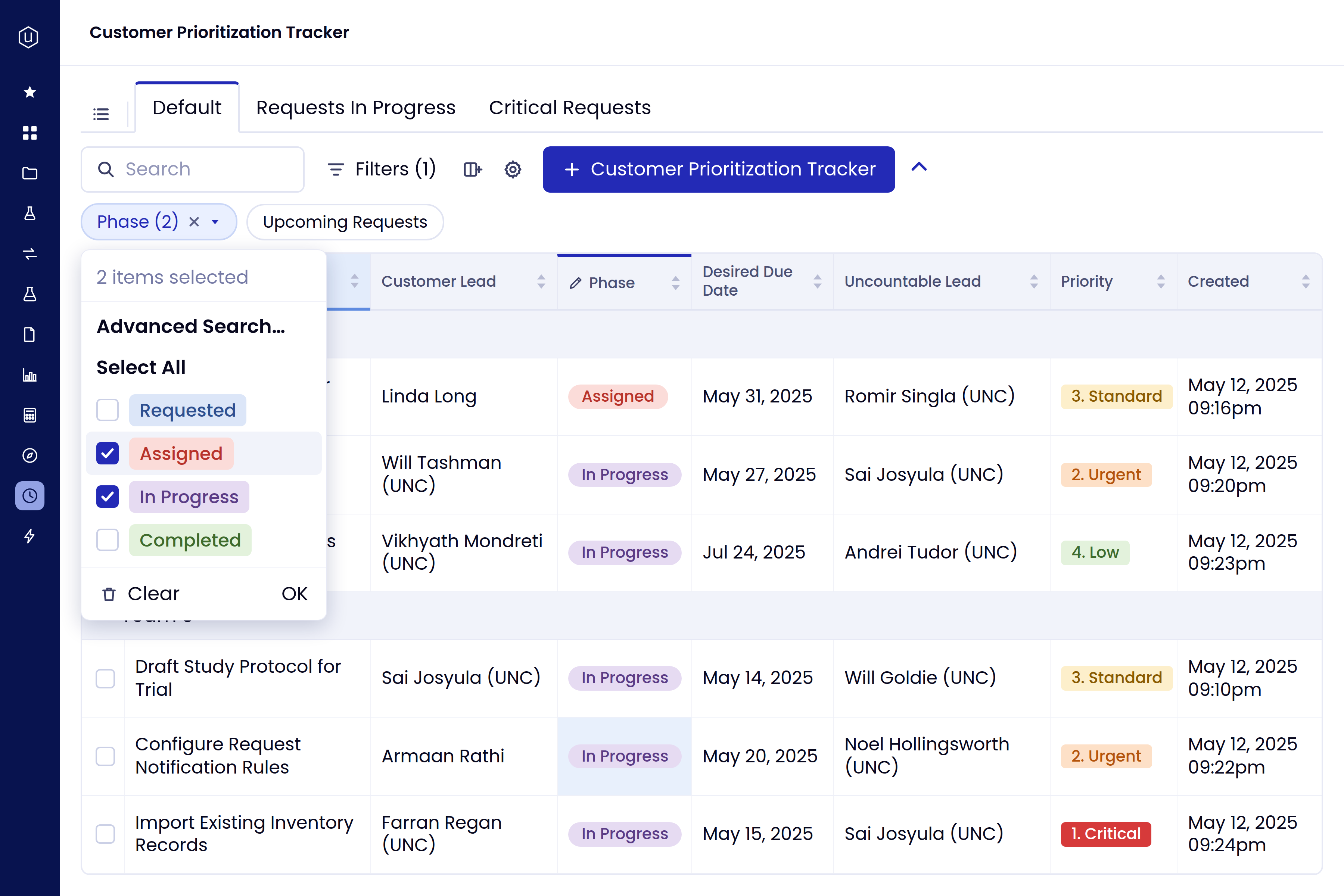
- Quick filters. Put the questions a team asks every day one click away, as toggles and dropdowns above the table.
- Filters. Build precise conditions with AND/OR groups, numeric comparisons, date ranges, and dynamic values such as “This User” and “This Project”.
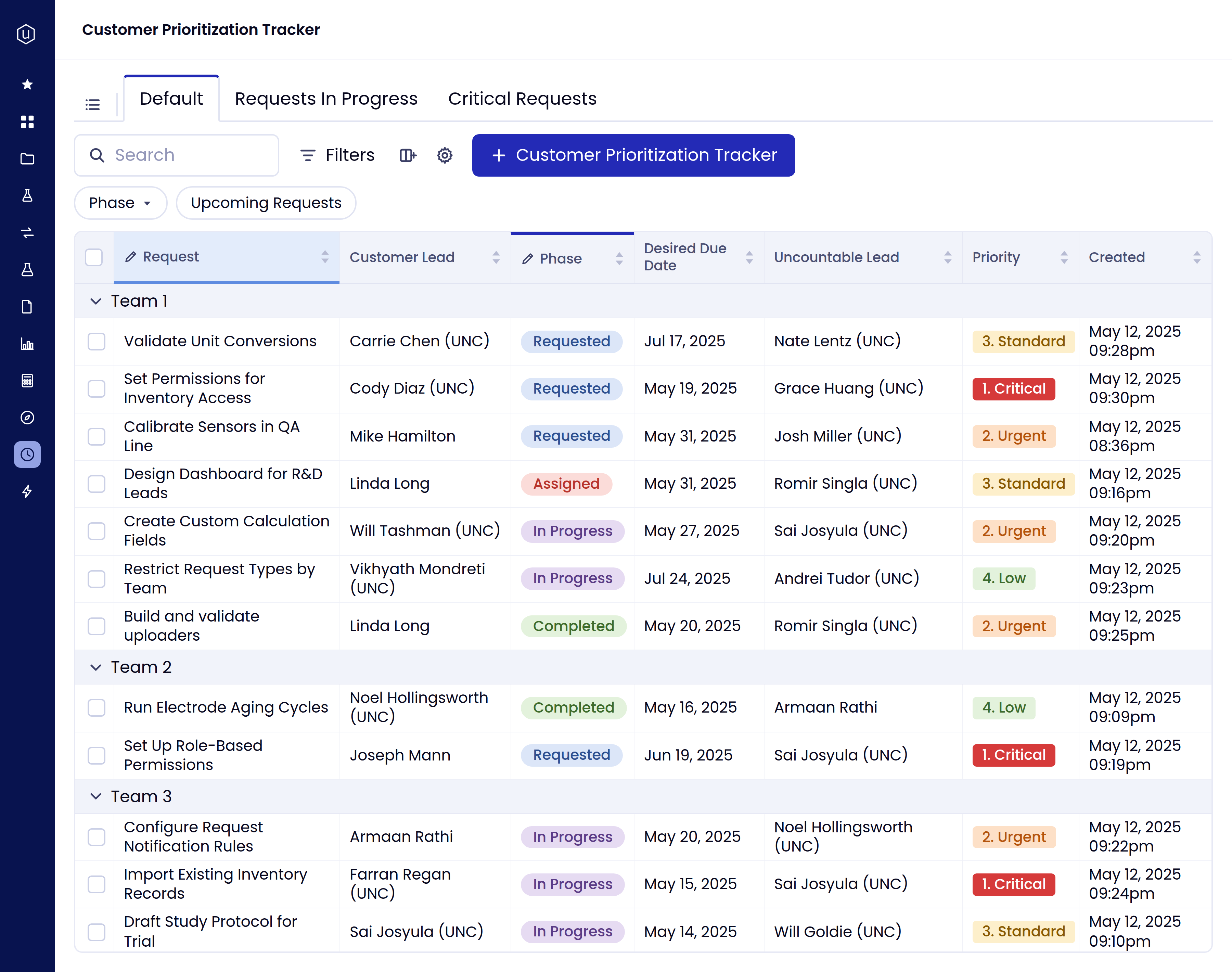
- Sorting and grouping. Sort by any column and group rows by a field, for example by team or by phase.
- Presets. Save a set of columns and filters as a personal preset and switch back to it at any time.
Track requests and projects
Bring priority, phase, owner, and due date into one view. Tabs such as “Requests In Progress” and “Critical Requests” give each recurring review a starting point. Rows can be grouped by team, and color-coded phase and priority values make status visible at a glance.
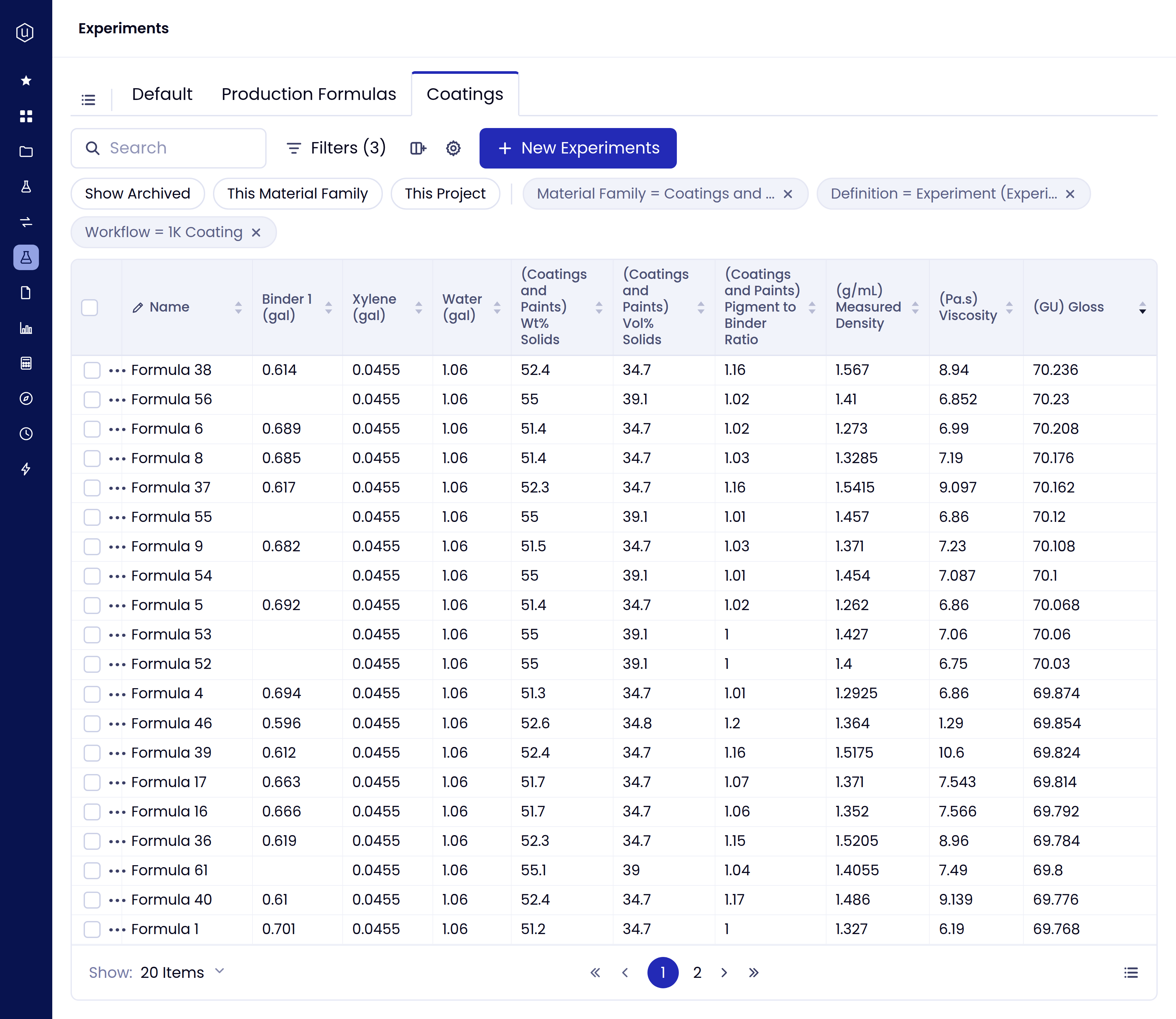
Compare experiments side by side
Show formulation inputs, calculated values, and measured properties in the same table. Sort by a property to rank results and decide which experiments to open for a closer look.
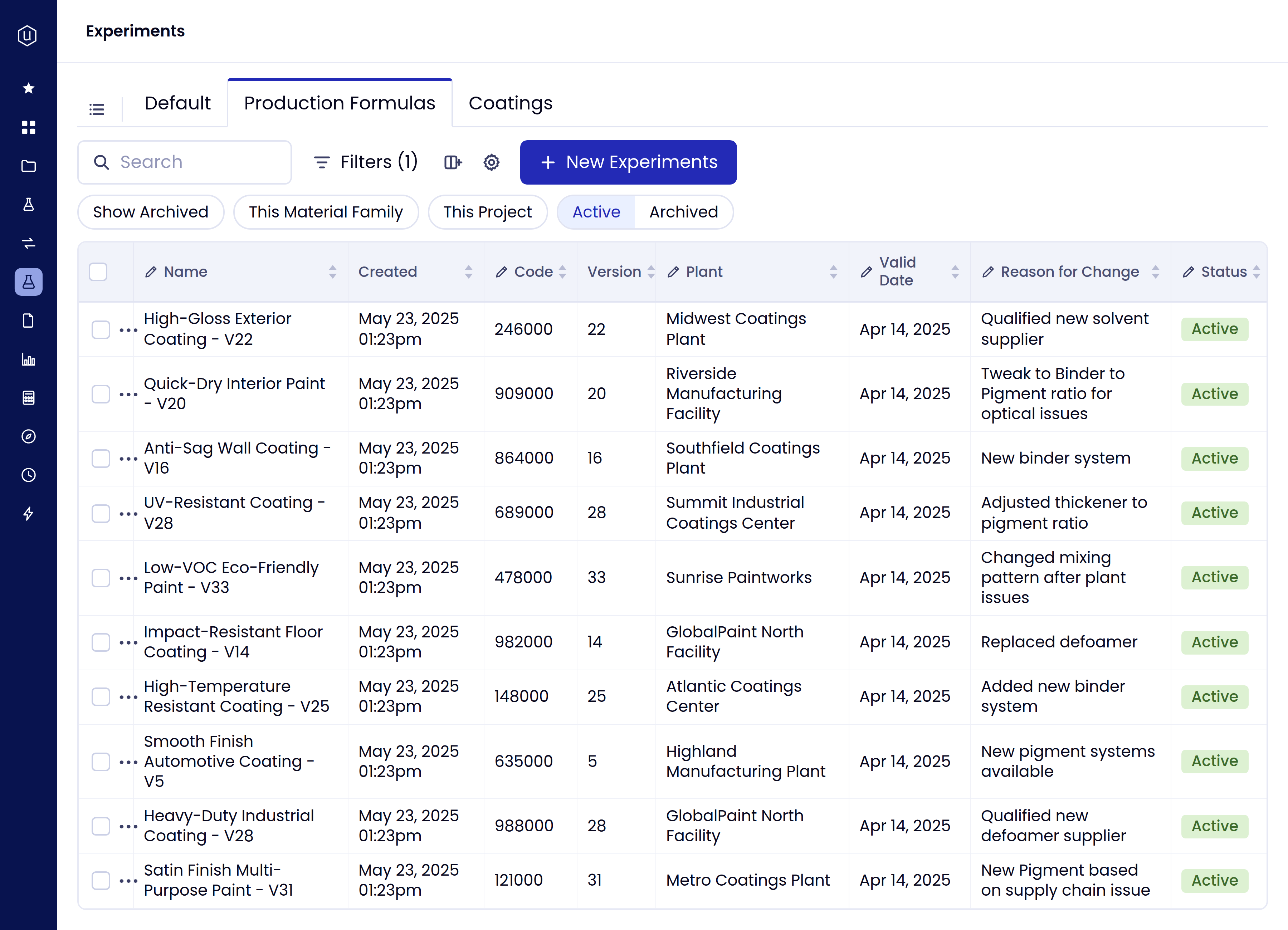
Review production formulas
Give production and quality teams a view of released formulas with the plant, version, valid date, and reason for change. A quick filter switches between active and archived formulas.
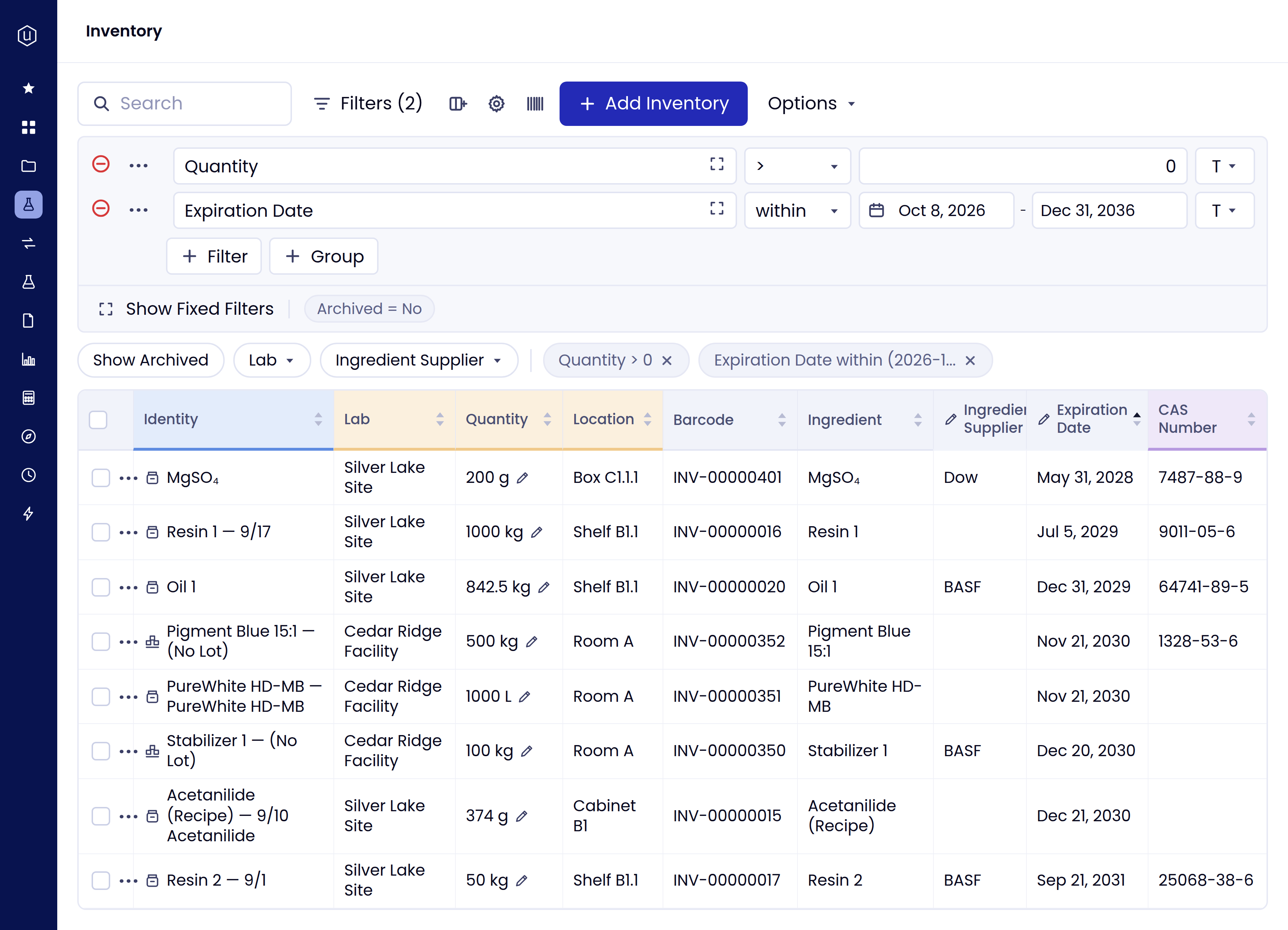
Focus inventory reviews
Group inventory columns by topic, filter on expiration date or quantity, and sort so the most urgent lots appear first. Quick filters for lab and supplier narrow the list further.
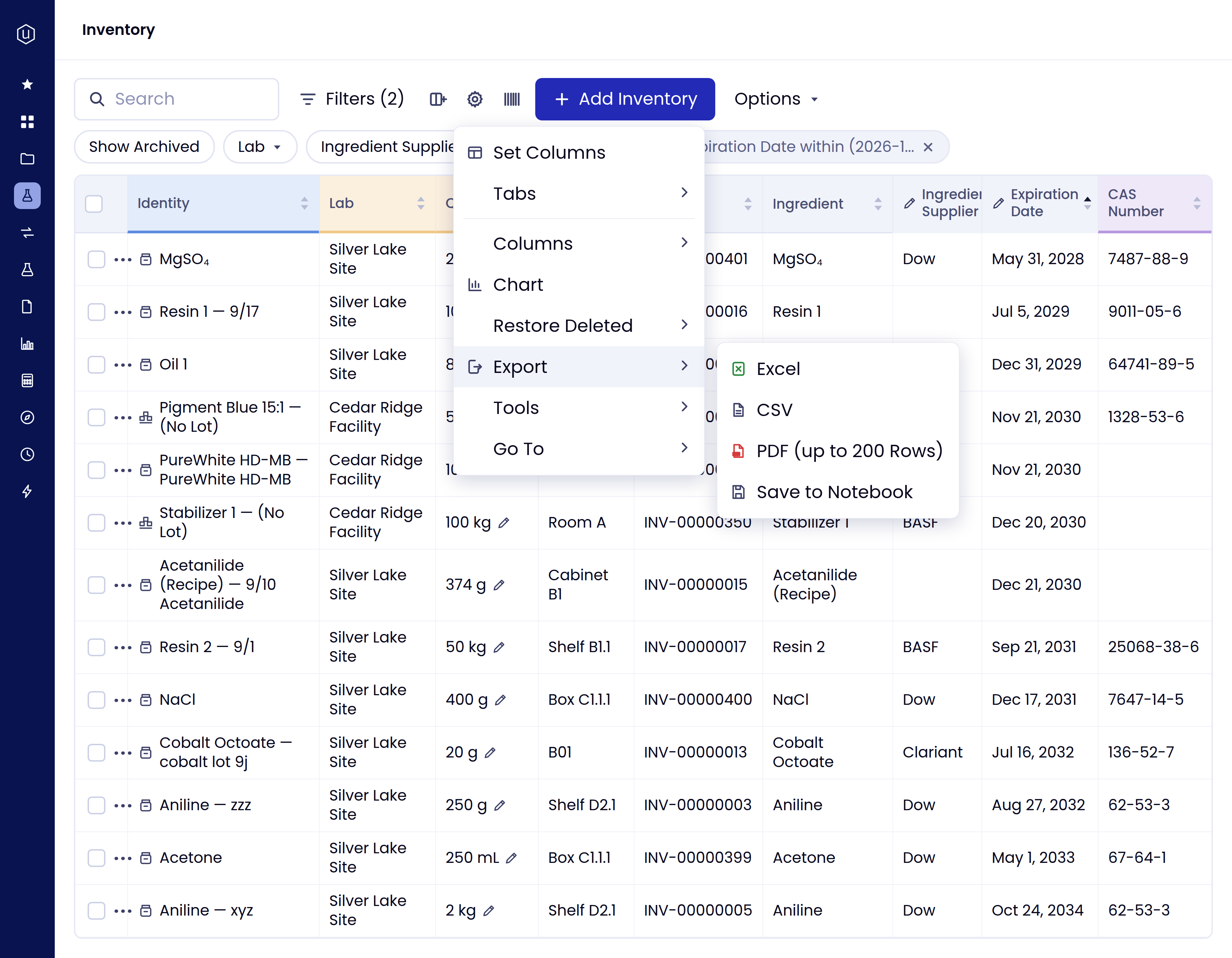
Act on the results
Edit values directly in the table, select rows to act on several records at once, and chart the data in the listing. Export the table to Excel, CSV, or PDF, or save it to a Notebook.
Get started
For help configuring Listing Tables, contact your Uncountable account manager or implementation manager, or email info@uncountable.com. To see Listing Tables with your own data, book a demo.
.png)
.png)